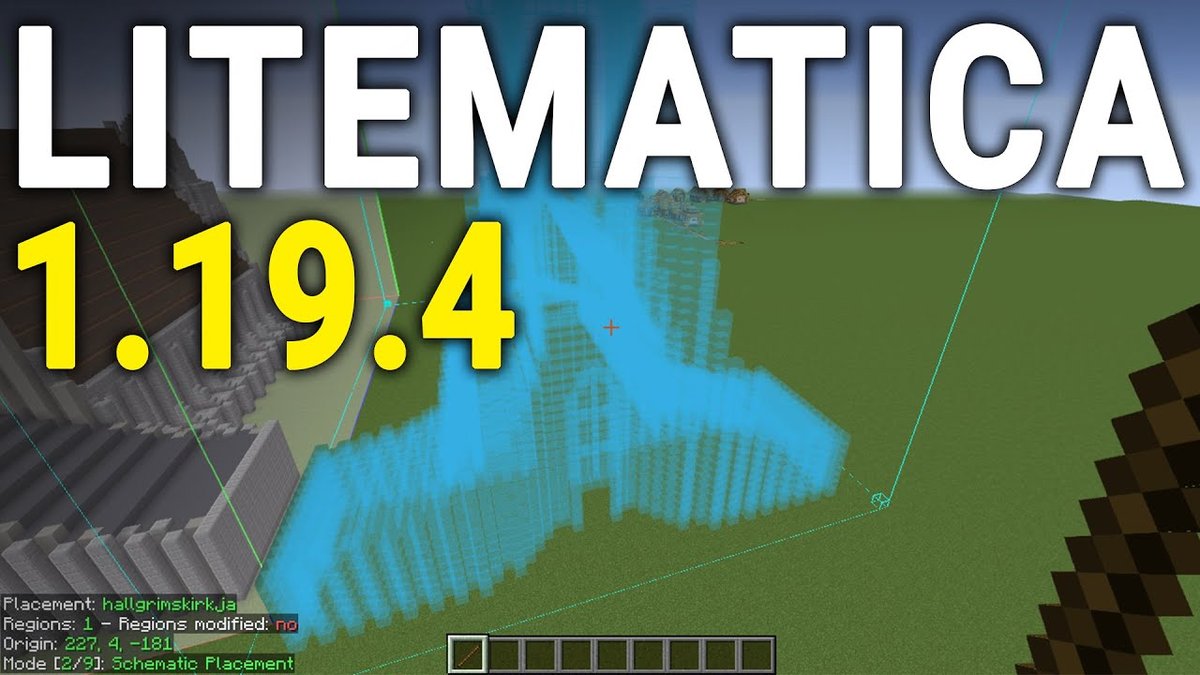
So, you're diving deeper into the incredibly versatile world of Minecraft mods, and perhaps you've stumbled upon the term "mod schematics," especially concerning the ingenious Create Mod. This isn't just jargon; it's your key to unlocking truly advanced, automated, and awe-inspiring builds without having to meticulously place every single block yourself. Think of it as a digital blueprint for your most ambitious projects, streamlining everything from massive farms to intricate contraptions.
Ready to understand how these clever files work and how they can revolutionize your gameplay? Let's get started.
At a Glance: What You'll Learn About Mod Schematics
- Digital Blueprints: Mod schematics are precise digital plans for complex structures and machines.
- Time Savers: They allow you to instantly build intricate designs created by others, or save your own.
- Create Mod Focus: Widely used in the Create Mod community for automating and mechanizing Minecraft.
- Categorized & Compatible: Available for various build types and Minecraft versions (e.g., 1.20.X, 1.21.X).
- More Than Just Blocks: They detail component placement, machine configurations, and even power systems.
- Community-Driven: A rich library of shared designs means endless possibilities at your fingertips.
What Are Mod Schematics, Anyway? (And Why They're a Game-Changer)
At its heart, a mod schematic is a data file that describes a collection of blocks and entities in a specific arrangement. Imagine someone spending hours perfecting an automated iron farm, a sprawling factory, or even an elaborate Gothic cathedral. Instead of you having to copy it block-by-block, they can save that entire structure as a schematic. You then load that schematic into your game, and with the right tools, it can be built for you, block by painstaking block, in a fraction of the time.
For the Create Mod community, schematics are particularly powerful. This mod is all about kinetic energy, automation, and complex machinery. Crafting these intricate setups – from conveyor belts and mechanical arms to crushing wheels and elaborate steam engines – demands precision. Schematics take the guesswork and tedious placement out of the equation, letting you deploy sophisticated systems instantly. You can easily find these community-contributed blueprints at resources like createmod.com/schematics, which offers a vast library of designs.
Peeking Inside a Schematic: Core Components & Concepts
Schematics aren't just pretty pictures; they're packed with essential information. Understanding these core concepts will make using and even creating your own schematics much smoother.
The Blueprint in Action: What a Schematic Contains
Essentially, a schematic captures the exact coordinates, block types, and sometimes even the configurations of individual mod components within a defined area. This means when you download a schematic for, say, an "Automatic Greenhouse Mk. 2," it knows precisely where every block of dirt, glass, water, and Create Mod component (like mechanical arms or drills) needs to go. It's a precise instruction set for construction.
Version Compatibility: The Minecraft & Schematic Dance
One crucial aspect to pay attention to is compatibility. Just like Minecraft itself, mods and their schematics evolve. Schematics are generally built for specific Minecraft versions, such as 1.20.X or 1.21.X. Similarly, the schematics themselves have version numbers (e.g., 0.5.1 to 6.0.9), often reflecting updates to the Create Mod itself or refinements to the build.
Always double-check that a schematic's version aligns with your Minecraft and Create Mod versions to avoid frustrating issues. Trying to load a 6.0.9 schematic into an older Create Mod setup might lead to missing blocks or non-functional machines.
Categorization: Finding What You Need, Fast
The sheer variety of Create Mod builds can be overwhelming. That's why schematics are typically organized into helpful categories, making it easy to zero in on what you're looking for. Let's explore some common types:
- Builds: This is the broad category for structural and aesthetic designs. Think grand architecture or functional spaces. You'll find everything from a "Gothic Farm House with Garage" or an "Elevator designed for a Five Nights at Freddy's Build" to essential infrastructure like a "Nether Portal Structure" or even monumental "Pyramid and Sphinx" designs. Whether you need a "Customizable Workshop" or a "Neoclassic Train Station," this category offers diverse blueprints.
- Power Generation: If you're building automated systems, you need power – specifically, Stress Units (SU) in the Create Mod. This category is where you'll find designs for efficient power sources. Examples include a "3 Cylinder Diesel Engine," various "Steam Engines" (like a 2x5x8 self-sufficient Level 4 engine claiming
819.2 SU/blockor a powerful 5x6x9 LV10 self-contained unit producing163,840 SU), and even more specialized diesel engines designed to prevent overstress. - Farms: Automation shines brightest in resource generation. The "Farms" category is a treasure trove of designs to gather materials efficiently. This includes high-yield setups like an "Iron Farm claiming 2500/H" (iron per hour) or an incredible "Obsidian Farm boasting 214K/HR." You can also find specialized farms for a variety of resources: "Netherite & Coal Block Farm," "Universal Wood & Cardboard Farm," or even food production like a "Chocolate Cake Factory."
- Player Transport: Moving around your world can be an engineering feat with Create Mod. Look for schematics like a "Low-Floor Tram," various "Train (FD20)" models, or even a "Propeller Plane with a Compact Double Engine" to traverse the skies.
- Item Processor: These schematics focus on transforming raw materials into refined products. An "Armor Machine" to craft gear or a "Bio-Diesel Refinery" are prime examples of systems that automate complex crafting chains.
- Other Contraptions: This is the catch-all for ingenious and often complex machines that don't fit neatly elsewhere. Here you might discover something like a "Particle Accelerator Oritech 8KJ" with a compact
45x45footprint, or a "Create Precision Mechanism integrated with an AE2 Pattern Provider." - Doors: Even something as simple as a door can be a marvel of engineering with Create Mod. This category features advanced mechanisms, such as a "Sliding Mountain Door with Rotating Center" or a basic "Sliding Mountain Door."
- Mob Farms & Crop Farms: These specialized categories streamline the collection of resources from mobs or cultivate crops like a "Simple Glowberry Farm" or a "Resin Farm."
Materials and Resources: Your Shopping List
While schematics provide the blueprint, they don't conjure blocks out of thin air. Before you can build, you'll need the necessary materials in your inventory or readily available. Most reputable schematic sources will list the required blocks and items, often in great detail. This is your "shopping list" for construction, and gathering these resources is typically the biggest initial hurdle.
Stress Units (SU): The Power Metric
For many Create Mod schematics, particularly those in "Power Generation" or "Other Contraptions," you'll encounter "Stress Units" (SU). This is the Create Mod's internal power system. A schematic designed to generate SU will often specify its output, while a machine requiring SU will implicitly need a power source capable of meeting its demands. Understanding SU helps you assess the efficiency and operational requirements of complex automated builds.
Navigating the Schematic Landscape: Where to Find & How to Choose
With a clearer idea of what schematics are, your next step is finding the right ones. The internet is a vast place, but focusing on reliable community hubs is key.
Your Go-To Hubs
As mentioned, createmod.com/schematics is an excellent starting point, offering a curated collection of community-contributed schematics. Beyond dedicated sites, you'll find schematics shared on various Minecraft forums, Discord servers for the Create Mod, and even YouTube channels that showcase elaborate builds.
Smart Searching and Filtering
Most schematic repositories offer robust search and filtering options. Make use of them!
- Category: Start by filtering for "Farms," "Power Generation," or "Builds" to narrow down your focus.
- Minecraft Version: Always filter by your specific Minecraft version (e.g.,
1.21.X) to ensure compatibility. - Keywords: Use keywords like "iron farm," "compact," or "diesel engine" to find specific designs.
- Popularity/Ratings: If available, check for popular or highly-rated schematics, as these often signify well-tested and efficient designs.
What to Look for in a Good Schematic Listing
Before you download, perform a quick quality check:
- Clear Description: Does the listing clearly explain what the schematic does?
- Screenshots/Videos: Are there images or even a video showcasing the completed build? This helps you visualize it and confirm it meets your needs.
- Material List: Is there a list of required materials? The more detailed, the better.
- Version Compatibility: Is the Minecraft version and Create Mod version clearly stated?
- Creator Information: Knowing the creator can be useful; active members often have reliable, well-documented designs.
- Instructions: Does it come with any specific placement instructions or operational notes? Some complex schematics might need specific starting conditions.
Bringing a Schematic to Life: The Practical Steps
You've found your perfect blueprint; now it's time to build! The primary tool for deploying schematics in Minecraft with the Create Mod is the Schematicannon, or by using a companion mod like Schematic and Goliaths.
Step 1: Download the Schematic File
Schematic files usually end with a .nbt extension. Once you download it, you'll need to place it in a specific folder within your Minecraft directory. Typically, this is:/.minecraft/schematics/
If the schematics folder doesn't exist, simply create it.
Step 2: Loading the Schematic In-Game
With the file in place, jump into your Minecraft world.
- Craft a Schematicannon: This is your primary construction tool.
- Place the Schematicannon: Position it where you want your build to start.
- Insert the Schematic: Open the Schematicannon's GUI and select your desired schematic from the list. It will display a ghost image of the structure, allowing you to fine-tune its position and orientation.
- Load with Schematic and Goliaths (Alternative/Companion): This mod often provides more advanced placement and manipulation tools, letting you preview, move, and rotate schematics with greater ease before committing to building.
Step 3: Fueling the Construction
The Schematicannon needs two things to build:
- Materials: Place all the required blocks and items into the Schematicannon's inventory. It will pull from these as it builds.
- Blaze Burners (or other heat source): The Schematicannon needs heat to operate, typically provided by adjacent Blaze Burners. Ensure these are stoked (fed with combustibles like coal or lava) and correctly configured.
Step 4: Watch it Build!
Once fueled and supplied, activate the Schematicannon. It will begin placing blocks layer by layer, meticulously recreating the schematic. This process can take time, especially for large builds, but it's entirely automated.
Troubleshooting Common Issues
- "Missing Blocks" Errors: Double-check your Schematicannon's inventory. Did you forget something? Are there enough of each block?
- Incorrect Placement: If the ghost image looked right but the build is off, try loading the schematic again and adjusting its position more carefully. Sometimes rotating it 90, 180, or 270 degrees is necessary.
- Schematicannon Not Firing: Is it powered? Are the Blaze Burners stoked and facing correctly?
- Mod Version Mismatch: If the build is incomplete or contains glitched blocks, your Create Mod or Minecraft version might not be compatible with the schematic's version.
- Lag: Very large schematics can cause significant lag during construction. You might need to adjust your game settings or build in smaller chunks if possible.
Beyond the Basics: Advanced Uses & Customization
Schematics aren't just for copy-pasting; they're also a springboard for creativity and collaboration.
Modifying Existing Designs
Found an almost-perfect schematic but want to tweak it? Once built, you can easily modify any aspect of the structure. Perhaps you want to swap out stone for wood, add an extra output, or integrate it more seamlessly into your existing base. You can even save your modified version as a new schematic! This is where the real value of schematics shines – they provide a solid foundation that you can iterate upon. For example, if you're exploring complex power systems, you might start with a community-designed "6x Lvl 9 Steam Engine RivArey" and then adapt its outputs to your specific factory layout.
Creating Your Own Schematics
The Create Mod doesn't just let you use schematics; it empowers you to create them. If you've spent hours perfecting an "Ultra Compact Blaze Burner Crafter and Filler" or a "Customizable Workshop," you can save your masterpiece as a schematic. This allows you to:
- Re-deploy Your Own Builds: Recreate your favorite designs in new worlds or areas with ease.
- Share with the Community: Contribute your innovative designs back to the community, helping others save time and learn new techniques.
- Backup Your Work: Protect your complex builds from accidental damage or world corruption.
The process of creating a schematic involves using the "Schematic and Goliaths" mod or similar tools to define a selection box around your build and then saving it as an.nbtfile. It’s a powerful feature that turns individual builders into architectural curators. For more in-depth guidance on crafting your own blueprints, you might want to learn about Create Mod schematics creation tools.
Community and Collaboration
The Create Mod community thrives on sharing. Discord servers, subreddits, and dedicated forums are bustling with players exchanging schematics, offering advice, and showcasing their latest automated marvels. Engaging with this community can provide inspiration, troubleshooting help, and access to an even wider range of cutting-edge designs. It's a fantastic way to deepen your understanding and enjoyment of the mod.
Addressing Common Questions & Misconceptions
Let's clear up some frequent queries about mod schematics.
Are all schematics compatible with all Minecraft versions?
No. While some simple builds might transfer, complex Create Mod schematics are usually tied to specific Minecraft and Create Mod versions. Always check the compatibility noted by the creator (e.g., 1.20.X or 1.21.X).
Do schematics include items or just blocks?
Schematics primarily describe blocks and their placement. However, if a Create Mod component has an inventory (like a chest or a smart chute), a schematic might save its contents too, though this is less common and often needs specific mod support. For the most part, you'll be supplying the materials yourself.
Can I use schematics in survival mode?
Absolutely! The Schematicannon is a craftable item in survival mode. The challenge, of course, is gathering the vast amounts of resources often required for larger schematics. It's a true test of your resource management and automation skills.
What if a schematic doesn't work after I build it?
First, re-read the schematic's description for any specific operational instructions. Check power connections (Stress Units!), item inputs/outputs, and ensure all Create Mod components are correctly placed and configured. If it's a known schematic from a reputable source, consult community forums or the creator for help. Sometimes, a small detail can make all the difference.
Your Next Steps into the World of Automated Wonders
Mod schematics for the Create Mod are more than just files; they're an invitation to build bigger, smarter, and faster. They reduce the barrier to entry for complex automation, allowing you to learn from the best builders in the community and rapidly deploy sophisticated systems. Whether you're aiming for a colossal "Gothic Cathedral V2.0," an efficient "Obsidian Farm," or a compact "Particle Accelerator Oritech 8KJ," schematics pave the way.
Start by exploring the vast libraries available, choose a schematic that excites you, gather your materials, and bring it to life. Don't be afraid to experiment, modify, and eventually, create your own shareable designs. The world of automated Minecraft is waiting for you to build its next marvel.